Commvault L1 › Section 2 › Lesson 2.3
Upload the Commvault media kit to the VMware datastore
Stage the Commvault 11.40 Unix Full Media Kit in a VMware datastore folder so it is available to the lab environment for the next installation stage.
HANDS-ON LABVMWARE VSPHERELESSON 2.3
Before you begin
- Use a non-production VMware lab.
- Confirm the downloaded file is FullMediaKit-Unix-40-CU78.tar.
- Confirm sufficient free datastore capacity before starting the upload.
Procedure
- In the vSphere Client, open the target datastore. The captured lab used datastore-50.
- Open the datastore Files view and select the lab media folder, shown here as ISO_TOOLS.
- Select Upload Files.
- Browse to and select FullMediaKit-Unix-40-CU78.tar.
- Confirm the filename, select Open, and monitor the datastore task until the upload finishes.
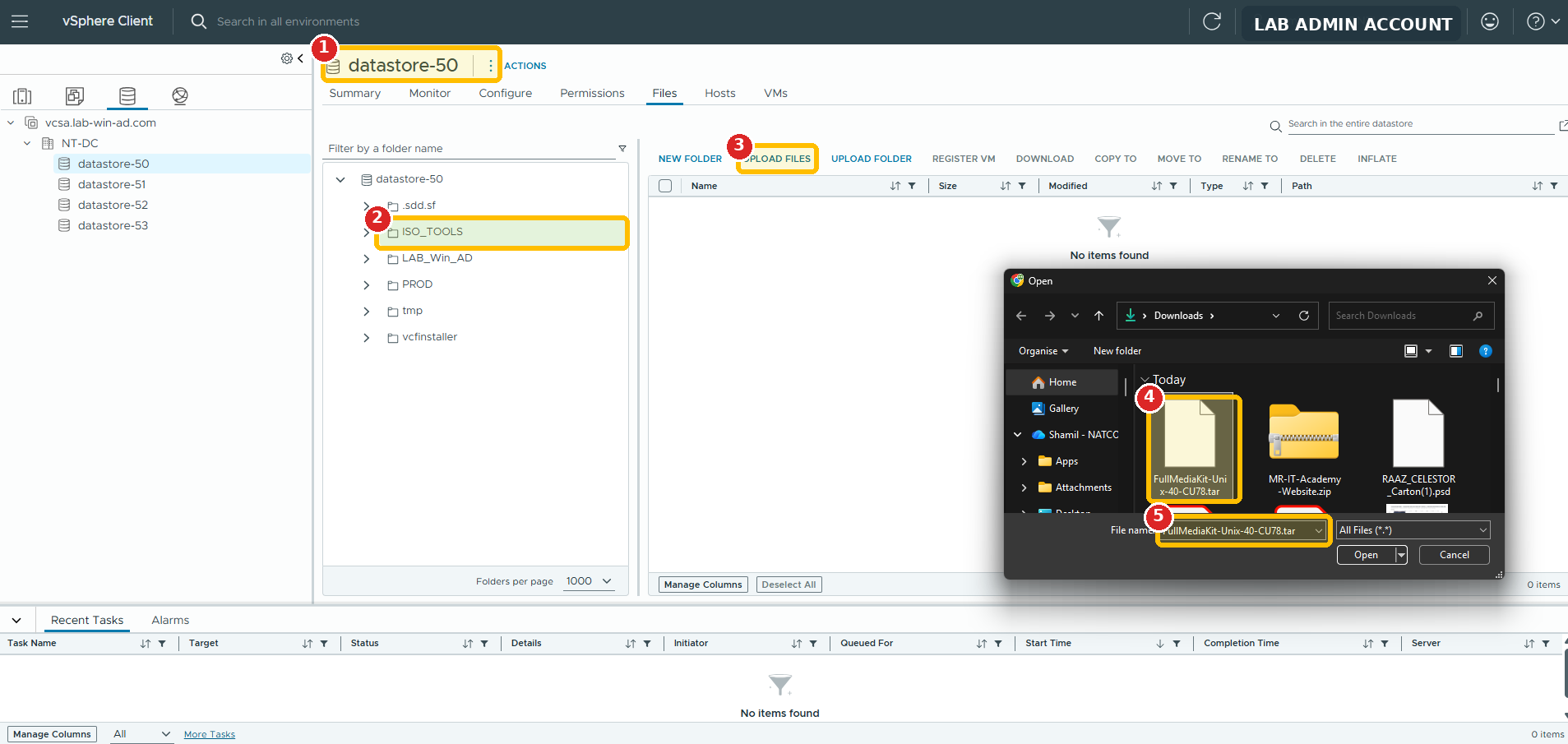
Lab screenshot with numbered callouts. The visible account name has been masked for course publishing.
Production safety: this is a file upload to a datastore. Use the designated lab folder, verify available capacity, and do not overwrite or delete existing datastore content.